Quick Start
This guide gets you from zero to your first AI conversation in under two minutes.
Step 1 — Sign in
Open Kognar Platform and sign in with your email, Google, or Apple account. See Authentication if you need help.
Step 2 — Start a conversation
Once signed in, you'll see the main chat interface:
- The sidebar on the left has, from top to bottom: the work-mode selector (Chat / Cockpit / Agentspace), a search row, New Chat and New Project rows, your projects, and your chats
- The chat area in the center is where messages appear
- The input bar at the bottom is where you type — and where the model selector and Power Tools also live
Use the New Chat row in the sidebar (or press Ctrl/Cmd+N) to start a new conversation. Type your first message and press Enter to send.
Step 3 — Choose a model
The model selector sits in the bar directly below the message text, next to the Send button. Click it to pick an AI model. Models are grouped by provider (OpenAI, Google, Anthropic, etc.) and can be filtered by use case:
| Filter | Best for |
|---|---|
| General | Everyday questions and tasks |
| Code | Programming help and code review |
| Image | Generating or editing images |
| Research | Web-connected research tasks |
You can only change the model before sending the first message in a conversation. To use a different model, start a new conversation.
Step 4 — Try a quick action
If you're not sure what to type, the empty chat shows a row of suggestion chips below the input. Each one has an icon and a short label, and tapping it pre-fills the input with a ready-made request:
- Write code
- Summarize text
- Analyze data
- Generate ideas
- Create content
You'll also see a personalized greeting at the top — generated using your name, the time of day, and (when you have history) a suggestion to continue something from recent conversations.
Step 5 — Explore from here
Now that you have your first conversation going, explore what's possible:
- Attach files — Click the paperclip icon (in the action bar below the message text) to add documents or images
- Enable agents & MCPs — Click the Power Tools button (slider icon) in the same action bar to manage agents, MCP servers and rules
- Organize — Create projects from the sidebar to group related conversations
- Search — Press
Ctrl/Cmd+Kto open the centered search modal across conversations and projects - Private window — Click the floating button in the top-right of the main area (or press
⇧⌘Ion macOS) - Customize — Open Settings (
Ctrl/Cmd+U) to configure your preferences
Interface overview
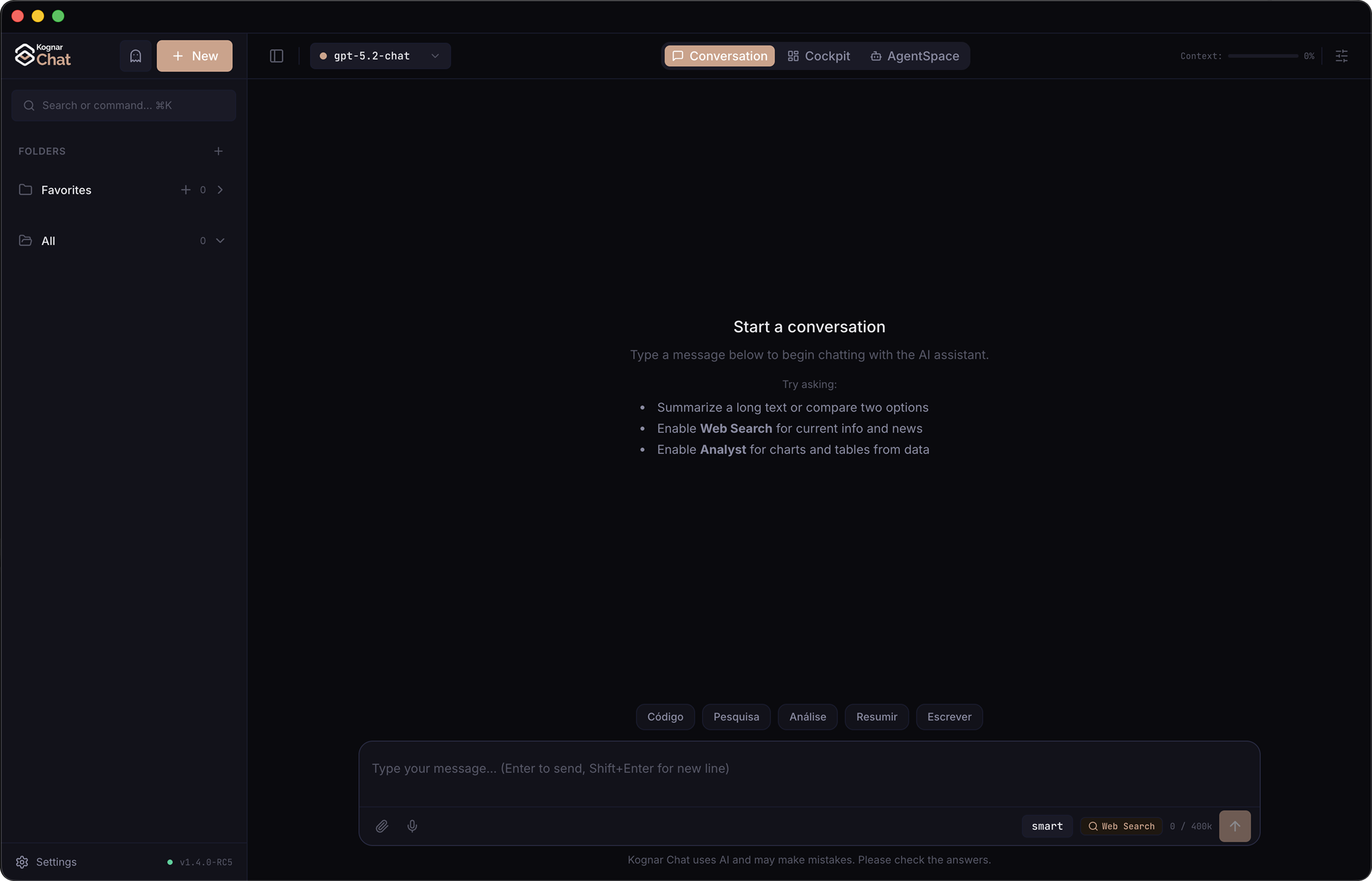
Keyboard shortcuts at a glance
| Shortcut | Action |
|---|---|
Ctrl/Cmd+N | New conversation |
Ctrl/Cmd+K | Search conversations |
Ctrl/Cmd+O | Attach a file |
Ctrl/Cmd+U | Open Settings |
Enter | Send message |
Shift+Enter | New line (without sending) |
Escape | Close modals |
Full reference: Keyboard Shortcuts